So in my 2nd post I talked about how one of my big development hurdles was going to be creating a pipeline that would allow for me to rapidly create/iterate levels for the game. It became obvious that this was going to be a problem when I realized how much content I would need to justify launching my game on an app store, and how incredibly slow my current level building process was. For the first levels I made in the prototype months and months ago, I literally copy and pasted dozens of blocks into a unity scene and gave each block a script that would auto-snap to a grid I predefined on Start()- I think had all of the level prefabs in the 'Play' level, and would "load" them by turning them on/off. It was pretty gross, but it got the job done for the short, 5 minute presentation it was built for.
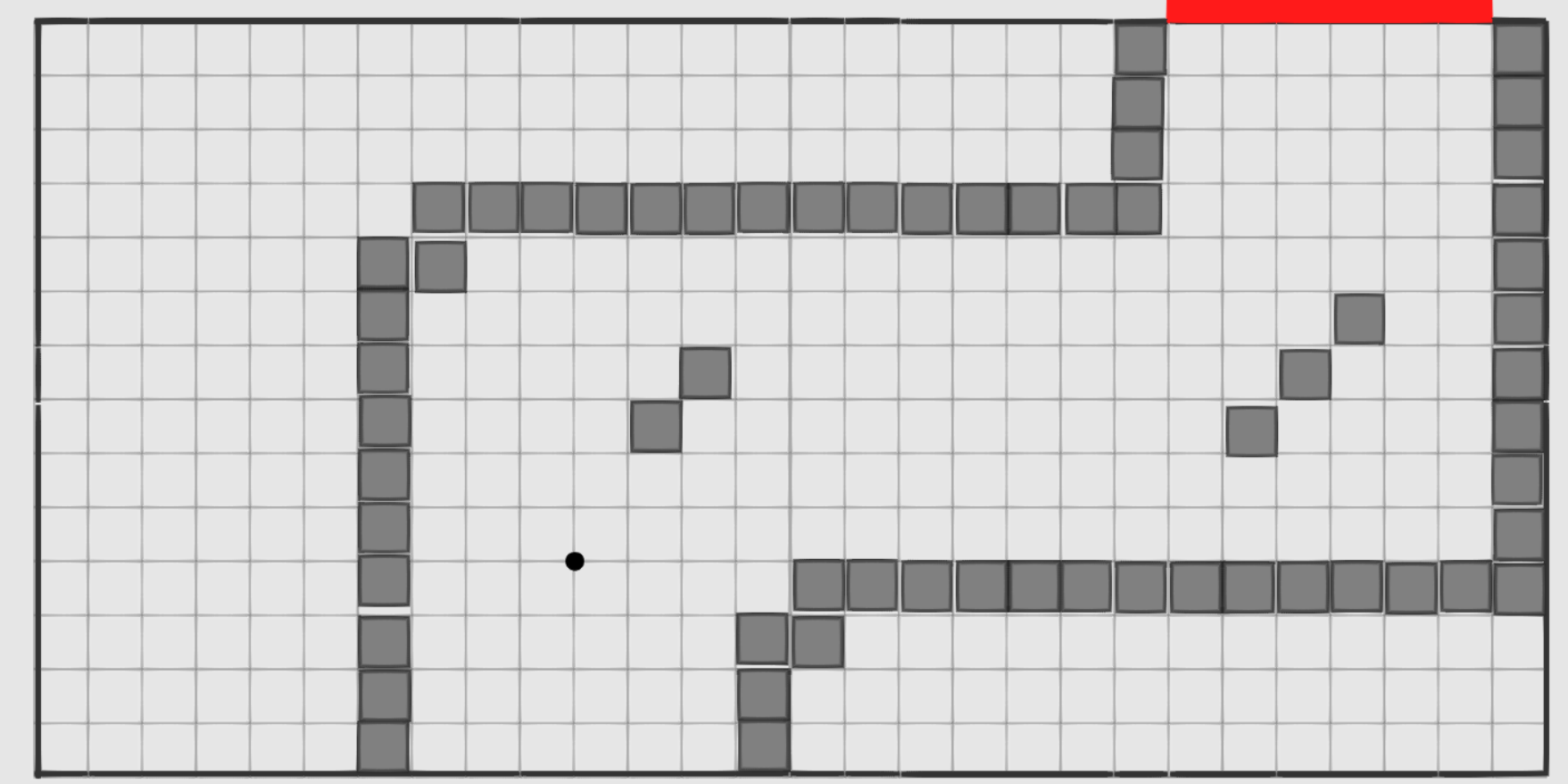
Replacing that system with a real one was at the top of my priorities, and it gave me a chance to dig into tool creation, something I really enjoy and want to get better at. The only problem I faced developing the level editor so early in the development process is that I don't actually know everything that might go into a level. I've explicitly outline a task for creating more as-of-yet unknown environmental obstacles. So this became one of the constraints for the tool- it had to be both flexible and extensible- so none of the work I did would be wasted as my definition for a 'level' changed with the redesign. My other constraints were that it had to be easy to use, with an emphasis of rapid creation/saving/loading/editing capabilities. Any time I lose time due to some extra step or finicky idiosyncrasy will quickly accumulate in a way I want to avoid.
With those goals/constraints in mind, I dug into Unity's editor utilities and GUI libraries, and built something I'm quite proud of. Good tool creation doesn't end when the tool is finished being built though- a tool is only as useful as its documentation. So, below you can find the explanation and documentation of my Level Editor! As I use it, it will undergo many changes, tweaks, and iterations which I'll be sure to fill you all in on once I hit another stopping point.
Level Editor Documentation
The first component to the Level Editor is the inspector. By selecting this in the scene outliner, you activate the tool. From this menu you can manipulate the level prefabs themselves, pick what you want to place in the level, check to see if the level has the required components to be valid, and adjust a level's timing parameters.
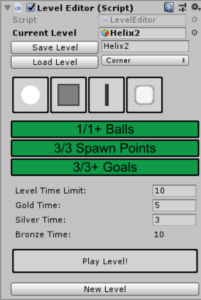
Current Level:
The currently selected level is displayed here. This isn't the prefab that was loaded most recently, but the actual instance of the level that you are editing.

Save:
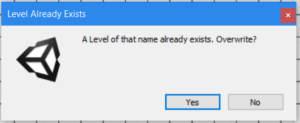
The save button will save the current level as a prefab to a predefined location. The text entry field to the right of the save button can be used to rename the level to avoid naming conflicts. If a naming conflict does occur during the saving process, a dialog will ask you if you want to cancel the save, or overwrite the previous file.

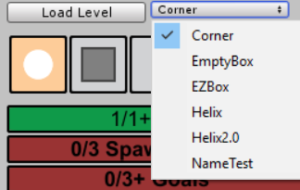
Load:
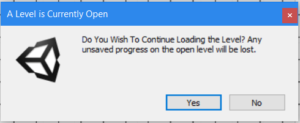
This button will load whatever level you have selected from the drop down menu to the right. The drop down menu will automatically update to contain any valid level prefab that has been saved in the folder. Because loading replaces the current level with the selected level, a prompt will verify you want to load the level at the risk of losing any unsaved work.
Object Spawn List:
This list of buttons will allow you to pick an object to spawn in the scene. The list is automatically loaded from a folder that all placeable objects, so it will automatically grow to include objects as more environmental pieces are developed.

Level Checks:
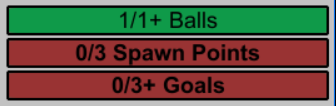
These three field monitor the current level for the various components necessary for a level to be considered valid. The level manager won't load a level that isn't considered valid, so its important that you make sure that your level satisfies these requirements before you call it finished. The fields display the current number of relevant object, and change color to reflect their status.
Timer Parameters:
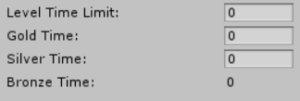
Here you can change the level's timer parameters. These determine the total time the player has to complete the level, and what the time cutoffs are for the various reward tiers.
Current Level:
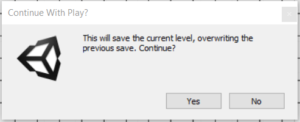
This button will let you immediately play the level you're working on. This will bypass the normal level loading sequence, and lets you rapidly test your level without having to deal with aspects of the normal play mode that might slow down iteration, like the default level loading order/validity checks/starting sequences etc. Playing the level requires saving it, so a prompt will make sure you're ready to save and don't accidentally overwrite anything.

New Level:
This will spawn an empty level with all of the requirements to function properly in the level editor. Make sure to rename it before you save it!
Using the Editor To Build Levels
After you've loaded in a level, or created a new level, you're ready to start editing it. This is done through various mouse and keyboard commands detailed below. Don't worry about deselecting the level editor by clicking in the scene view, or accidentally moving objects around. As long as you have the level editor selected in the scene hierarchy, your normal Unity mouse and keyboard behavior is disabled.
Placing Objects
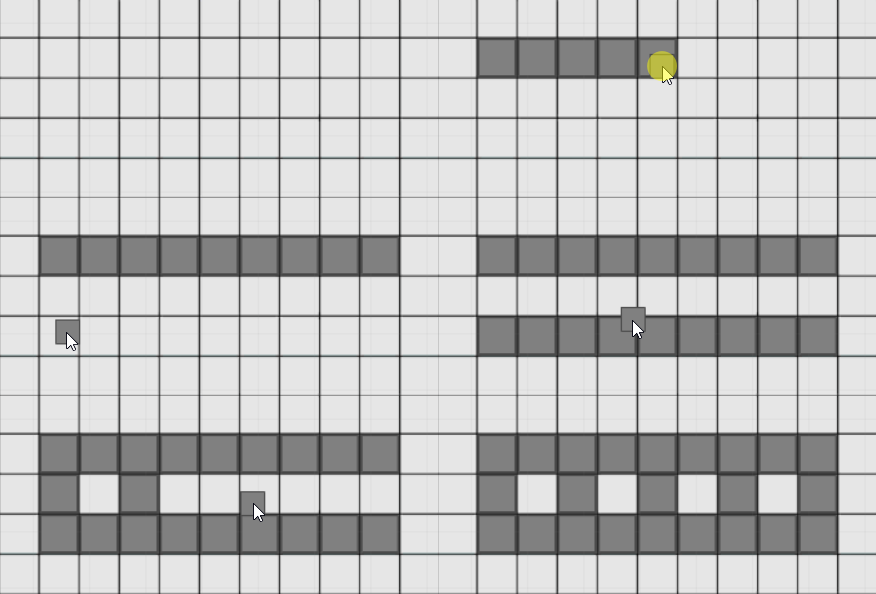
To pick which object you want to spawn, select it in the inspector GUI (detailed above). You can tell which object you're going to spawn by the icon that appears under your cursor. To place an object you can left click, or click and drag, If the corresponding grid position is free, the object will be automatically spawned in the correct position.
Deleting Objects
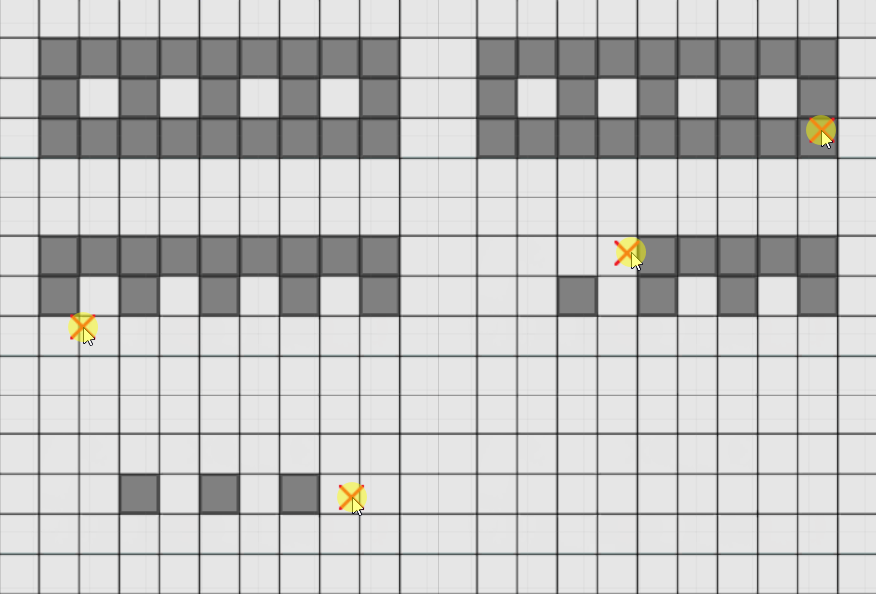
By holding left control, you switch into eraser mode, denoted by the red X that appears under your cursor. When you click, or click+drag while in eraser mode, you'll delete any level editor objects under your cursor.
Switching Object States
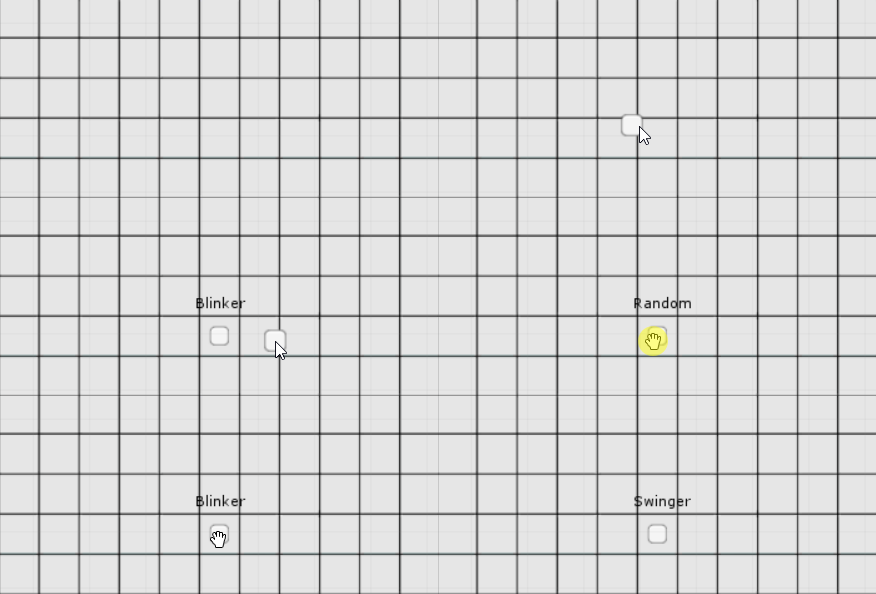
Some objects, most notably walls and unit spawners, can have a few different stating configurations. You can cycle between these by using right click.
Placing Walls
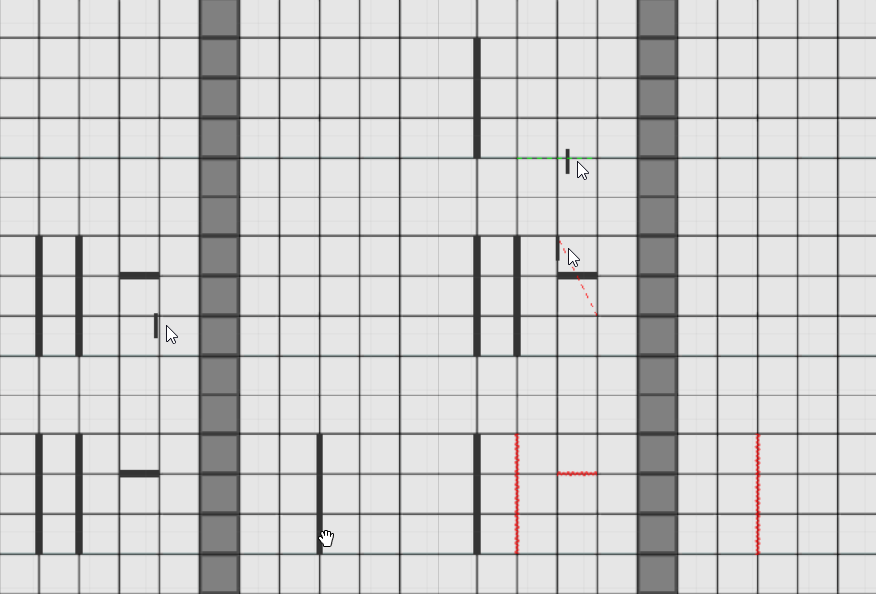
Walls placement works a bit differently than normal object placement. Because they are always placed in a line, instead of placing individual walls, you can click, move the mouse, and then click again to place a line of walls. The walls won't place if there's something in the way of the placement line.
By right clicking walls, they become Goals, a component that is necessary for a level to be considered valid.
Aligning the Grid
If the dimensions of the grid change for any reason, or the scale of the game play space or object change for any reason, you can adjust the scale that the level editor uses to calculate the grid by pressing tab. This will spawn position handles in the scene that you can use to outline the game play space, and then another smaller set you can use to outline a single cell. The way the grid space/dimensions are calculated will make up for imprecision, but its important to try and line the handles up as accurately as possible.
These alignments are level-specific. This means that if you want to change the dimensions of all existing levels, you'll have to go through and do it by hand. Automatically doing this is a planned feature.